Git for Beginners: Basics and Essential Commands
When you're working on a project - maybe a university paper or a coding assignment - you might find yourself saving files like this:
project_final.docx project_final_v2.docx project_final_REALLY_THIS_TIME.docx
This gets messy fast. Now imagine doing this with multiple files, or working with a team of people. It would be total chaos.
This is the problem Git solves.
What Is Git?
Git is a Version Control System (VCS). Think of it as a super-powered save button for your projects. It doesn't just save the current state - it takes snapshots of your entire project history. You can rewind to any previous point, compare changes, and see who changed what and why.
Git is also "distributed" which means every developer gets a complete copy of the project history on their own computer. You don't need internet to save your version history.
Important: Git is not the same as GitHub!
Git is the tool on your computer that manages version history
GitHub is a website that hosts Git projects online for backup and collaboration
You need Git first before GitHub makes sense.
Why Use Git?
Instead of just saving files normally, Git gives you:
Time Machine Powers: Broke your code? Just revert back to the last working state.
Safe Experimentation: Create a separate workspace (called a "branch") to try new ideas. If it works, merge it in. If not, delete it like nothing happened.
Better Collaboration: Git handles multiple people editing files. It can automatically combine changes, or highlight conflicts when two people edit the same line so you can resolve it manually.
Project History: See who wrote any piece of code and why (through commit messages).
Core Concepts
Before learning commands, you need to understand how Git thinks.
Repository (Repo)
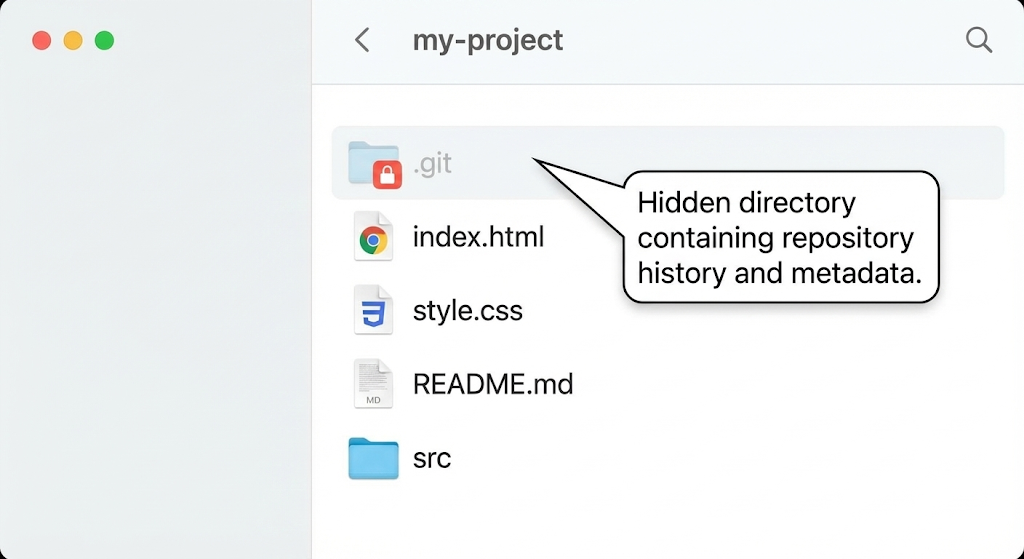
Your project folder. A Git repository contains all your files plus a hidden .git folder where Git stores history.
Commit
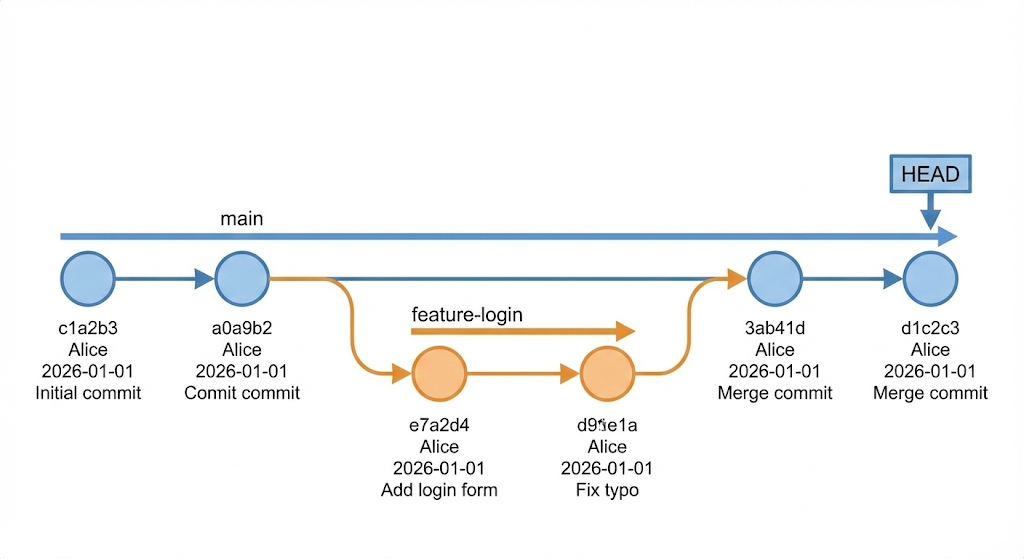
A snapshot of your project at a specific moment. Like a save point in a video game. Each commit has a unique ID.
Branch
A parallel version of your project. The main version usually lives on a branch called main. You create new branches to work on features seperately.
HEAD
A pointer showing "where you are right now." Usually points to the latest commit on your current branch.
The Three Stages (Most Important!)
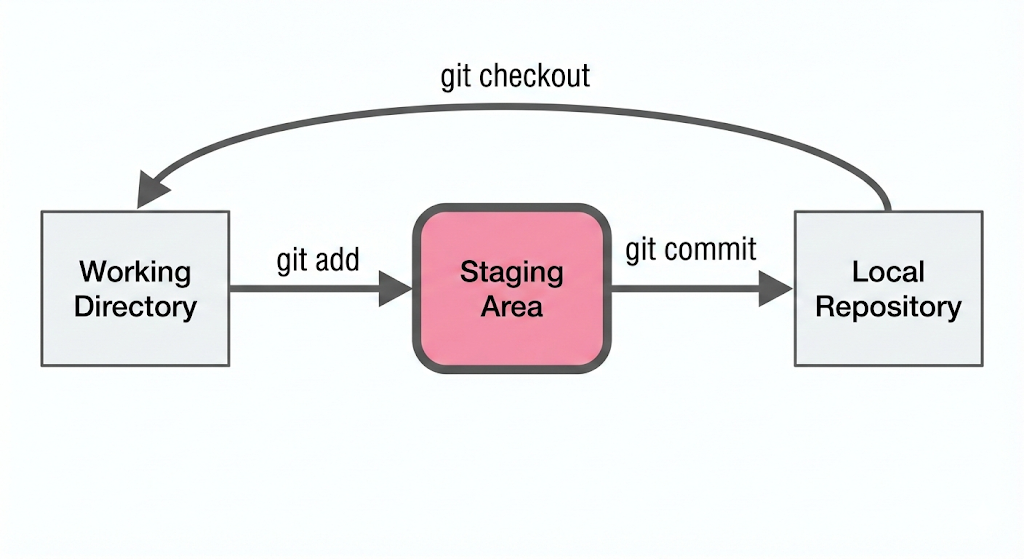
Git doesn't automatically save everything in your folder. You explicitly tell it what to save through three stages:
Working Directory - Where you edit files normally
Staging Area - Where you choose which files to include in the next snapshot
Repository - Where Git permanently saves the snapshot
Think of three buckets: You edit files in the first bucket. You move specific files into the middle "staging" bucket. Then you commit, dumping the staging bucket into the permanent "history" bucket.
Essential Commands
Make sure Git is installed first. Open your terminal (Mac/Linux) or Git Bash (Windows).
Initial Setup
Tell Git who you are (this just tags your commits):
git config --global user.name "Your Name"
git config --global user.email "your.email@example.com"
Starting a Repository
Navigate to your project folder and run:
git init
This creates the hidden .git folder. Your folder is now a Git repository.
Checking Status
This is your most important command. Use it constantly:
git status
It shows what files changed, what's staged, and what's untracked.
Staging Changes
You created a file called index.html. Git sees it but isn't tracking it yet. Stage it:
git add index.html
To stage all changed files:
git add .
Committing (Saving the Snapshot)
Once files are staged, take the snapshot:
git commit -m "Add homepage HTML skeleton"
The message describes what changed. Write clear messages in present tense like "Fix login bug" not "Fixed login bug."
Viewing History
See all your previous snapshots:
git log
This shows commit IDs, authors, dates, and messages.
Tips for Beginners
Commit Often: Don't wait until end of day. Commit after each small logical chunk like "Fix navigation bar" or "Add contact form". Small commits are easier to understand and undo.
Write Clear Messages: "fixed stuff" is useless. Be specific about what you changed.
Don't Panic: It's very hard to permanently lose work once it's committed. If you get stuck, search your error message online. Every developer has been there.
Common Mistakes to Avoid
Forgetting to commit regularly and having too many changes in one commit
Writing vague commit messages like "updates" or "changes"
Not understanding the three stages (working/staging/repository) and getting confused about why files aren't being saved
Confusing Git with GitHub
Getting Started
The best way to learn is to practice. Create a test folder, initialize Git, make some files, stage them, commit them. Play around - you can't really break anything in a test environment.
These basics cover about 90% of daily Git usage. There's more to learn like branching, merging, and remote repositories, but master these fundamentals first.
Once you start using Git regularly, it becomes natural. And the first time it saves you from losing hours of work, you'll understand why it's essential.