Inside Git: How It Works and the Role of the .git Folder

For many developers, Git is a necessary black box. We memorize a specific set of incantations—git add, git commit, git push—and hope for the best. When the commands work, it feels like magic. When they fail, it feels like a disaster.
However, the secret to mastering Git doesn't lie in memorizing complex command flags. It lies in understanding the data model. Git is not just a "saver of files"; it is a content-addressable filesystem with a version control user interface on top. To truly understand it, we must peel back the layers and look inside the engine room: the .git folder.
The .git Folder: The Real Repository
When you initialize a project with git init, Git creates a hidden subdirectory named .git.
It is a common misconception that your project folder is the repository. In reality, the files you see and edit—your HTML, CSS, and JavaScript files—are simply your Working Directory. They are temporary, mutable copies of your project.
The .git folder is the actual repository. It is the database that contains all the history, all the branches, and all the versions of every file you have ever committed. If you were to delete your entire project directory but keep the .git folder, you could restore everything perfectly. If you delete the .git folder, your history is lost forever.
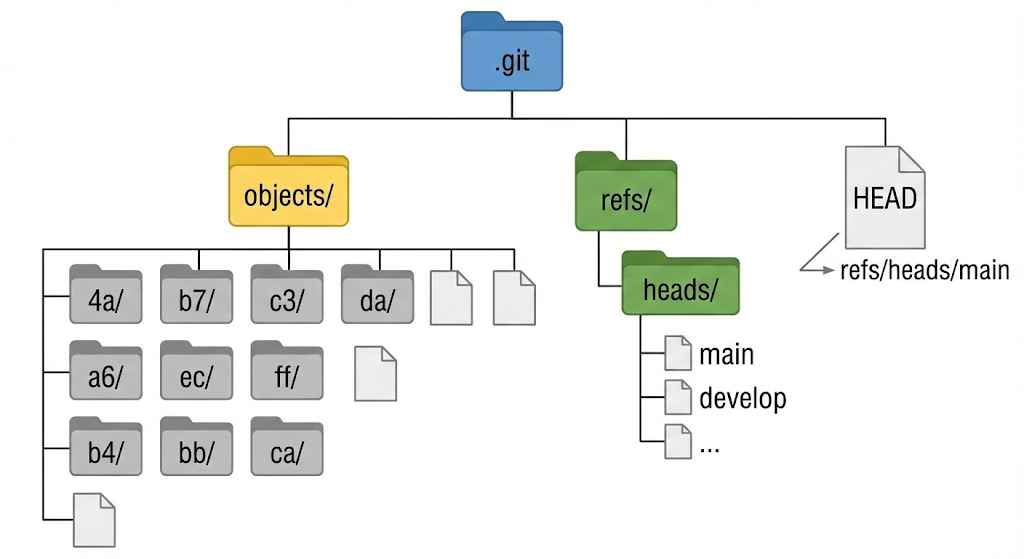
Inside this folder, Git manages a complex database, but three areas are critical for your mental model:
objects/: The storage warehouse. This is where your file contents and commits live.refs/: Short for "references." This folder holds pointers to the tips of your branches (likemainordevelop).HEAD: A simple text file that acts as a "you are here" marker, telling Git which branch or commit you are currently looking at.
Git Objects: The Building Blocks
At its core, Git is a key-value store. You give Git data (the value), and it gives you back a unique identifier (the key). This identifier is a SHA-1 hash—a 40-character string of numbers and letters.
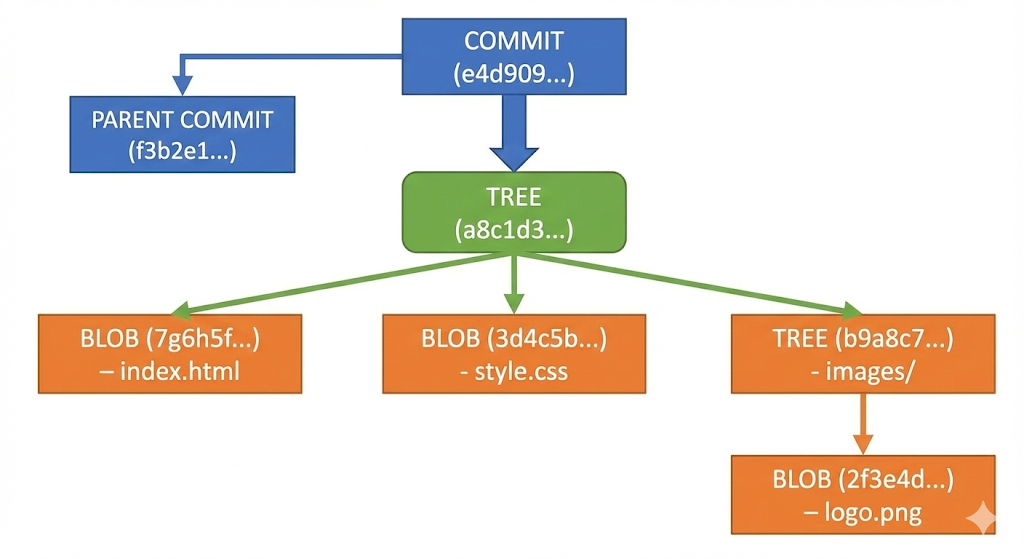
Inside the .git/objects folder, Git stores three main types of objects. Understanding these is the key to understanding Git.
1. The Blob (Binary Large Object)
The Blob is the simplest unit of storage. When you ask Git to track a file, it compresses the file's content and stores it as a Blob.
Crucially, a Blob stores only the content. It does not know the file's name, its permissions, or when it was created. It is purely a snapshot of data. Because blobs are identified by the hash of their content, Git automatically deduplicates files. If you have five identical copies of a file named text1.txt, text2.txt, etc., Git stores only one Blob.
2. The Tree
Blobs are useless without context. We need to know that a specific Blob belongs to a file named index.html. This is where the Tree object comes in.
A Tree is essentially a directory listing. It maps filenames to Blobs (for files) or to other Trees (for subdirectories). A Tree object allows Git to reconstruct the structure of your project at any given moment.
3. The Commit
A Tree gives us the project structure, but it doesn't tell us the history. The Commit object is the final piece of the puzzle. It wraps a Tree object with metadata:
The author name and email.
The timestamp.
The commit message.
The Parent Pointer: This is the magic link. Every commit (except the very first one) points back to the commit that came before it. This chain of pointers is what forms the history graph.
The Workflow: What Actually Happens?
When you run standard commands, you are actually manipulating these objects inside the .git folder.
The Anatomy of git add
Most beginners think git add just "marks" a file for saving. Internally, it does much more.
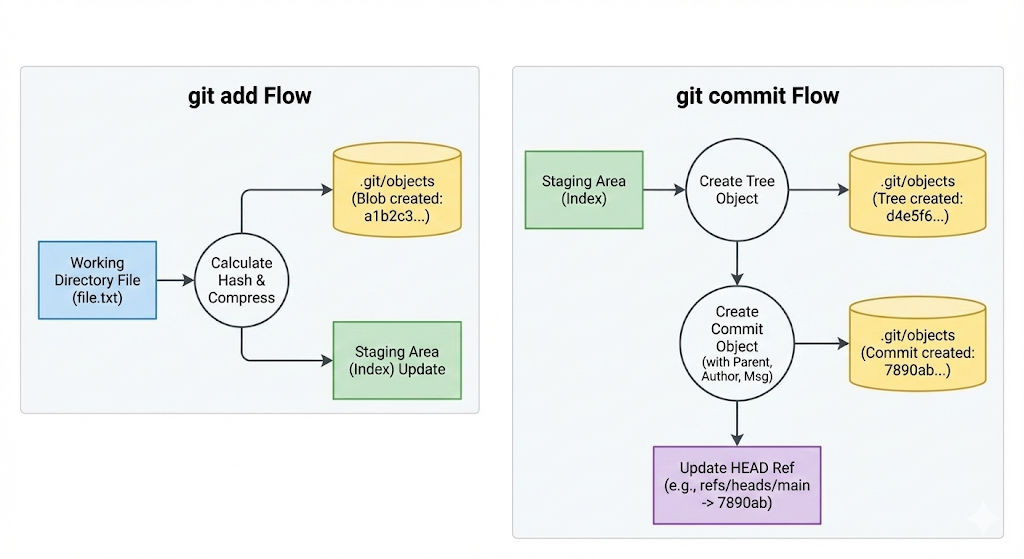
When you run git add filename.txt, Git reads the file, calculates its hash, creates a Blob object, and stores it in the .git/objects folder immediately.
It then updates the Index (also known as the Staging Area). The Index is a binary file that acts as a "draft" for your next commit. It lists the filenames and the specific Blob hashes they should point to.
The Anatomy of git commit
When you run git commit, Git essentially freezes the current state of the Index.
Tree Creation: Git creates a Tree object that mirrors the current list of files in your Index.
Commit Creation: Git creates a Commit object. This object points to the new Tree and points back to the previous commit (the parent) to maintain the history chain.
Ref Update: Finally, Git updates the current branch reference (e.g.,
refs/heads/main) to point to this new Commit ID.
Content Addressing and Integrity
Why does Git use those confusing 40-character strings (like e4d909...) instead of simple version numbers like v1, v2, or v3?
This is called Content Addressing. The ID of a file or commit is derived mathematically from its contents.
If you change a single comma in a source code file, the Blob's hash changes.
Because the Blob hash changes, the Tree pointing to it must change.
Because the Tree hash changes, the Commit pointing to it must change.
This creates a "Merkle Tree" structure, ensuring cryptographic integrity. It is impossible to alter the history of a Git project (like changing code in an old commit) without changing the ID of that commit and every single commit that came after it. This makes Git incredibly secure and trustworthy.
Conclusion
When you stop viewing Git as a list of commands and start viewing it as a graph of objects, the tool becomes much friendlier. You realize that a "branch" is just a tiny text file pointing to a commit hash. You realize that "staging" a file is just creating a Blob.
By understanding the .git folder, you move from memorizing magic spells to understanding the machinery, giving you the confidence to handle complex merges, rebases, and resets without fear.